CloudWatch Logs Insights
CloudWatch Logs Insights
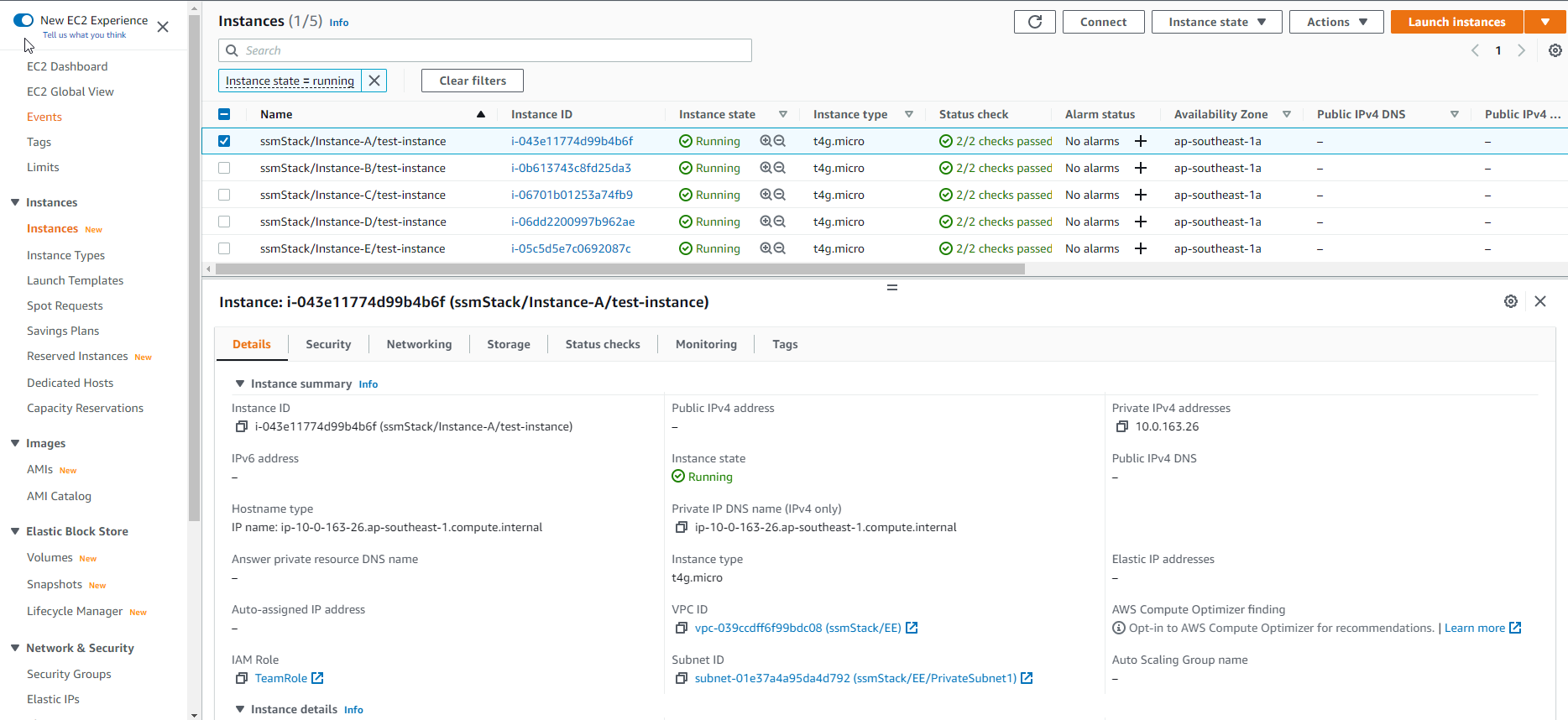
- Bạn truy cập vào giao diện EC2
- Chọn Instances
- Chọn /Instance-A/test-instance
- Sau đó, chọn Connect
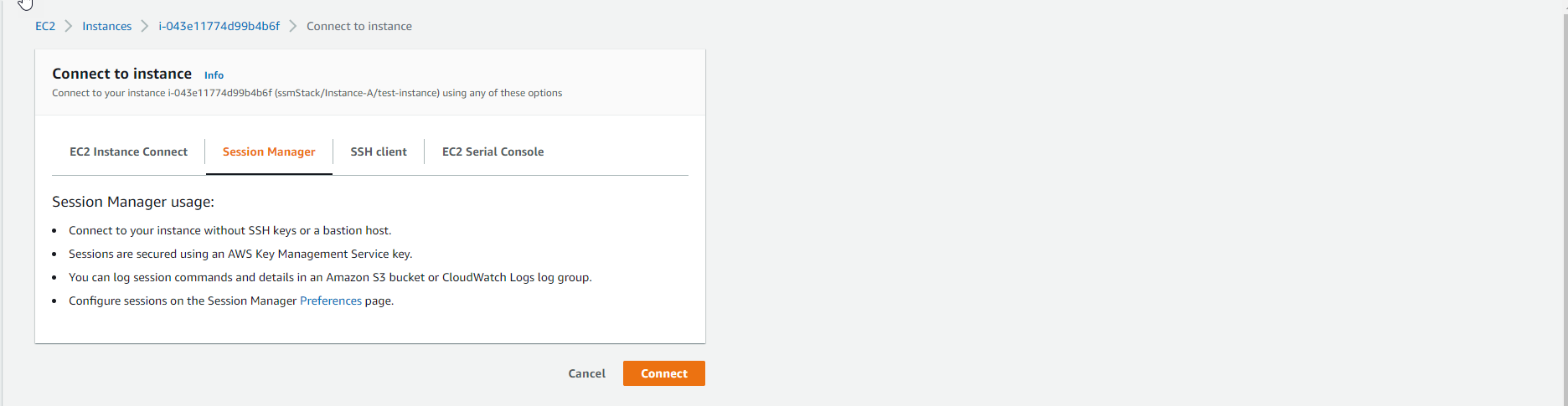
- Trong giao diện Connect to instance
- Chọn Session Manager
- Chọn Connect
- Chúng ta sẽ có một giao diện mới trên trình duyệt

- Sau khi truy cập vào giao diện Session Manager. Bạn thực hiện chạy đoạn script sau:
cd /tmp
sudo aws s3 cp s3://workshop-template-bucket/logger.py .

- Tiếp tục cấp quyền bằng cách chạy đoạn script tiếp theo
sudo chmod +x logger.py
python3 logger.py &

5 . Chúng ta kiểm tra lại bằng lệnh sau:
ps -aux | grep logger

- Xem log bằng lệnh sau:
sudo tail -f /var/log/messages

Tìm log trong CloudWatch Log Insights
- Truy cập vào giao diện CloudWatch*
- Chọn Logs Insights
- Chọn Select log group(s)
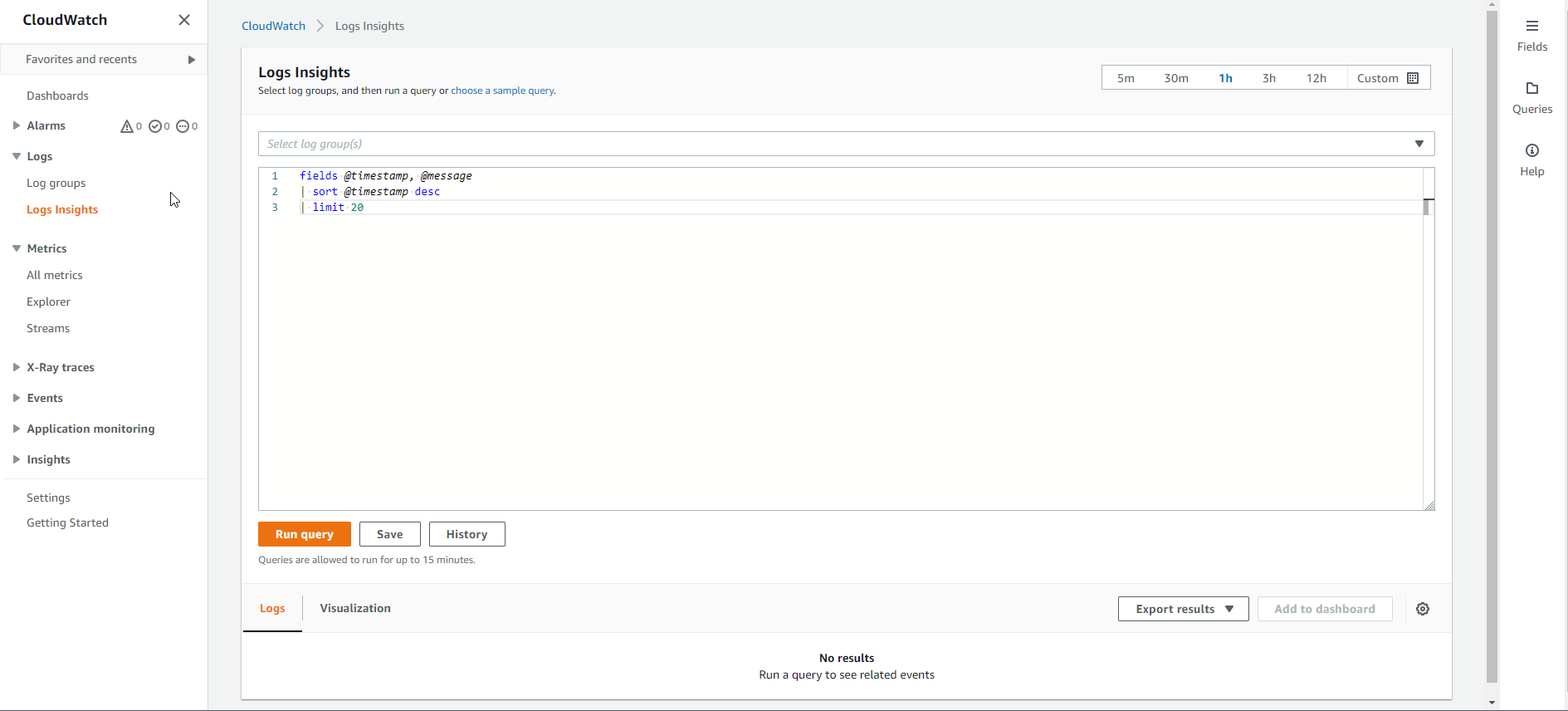
- Chọn /ec2/linux/var/log/messages.
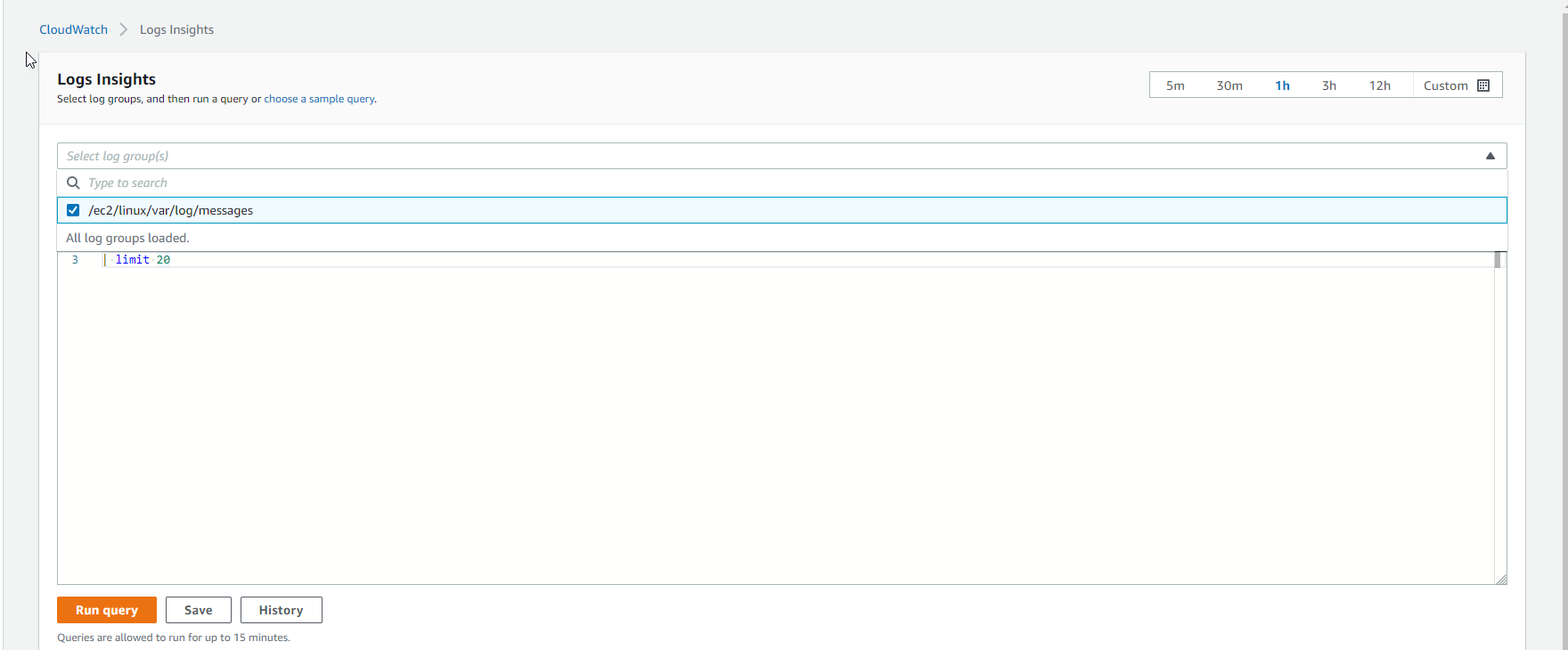
- Thực hiện Run query
fields @timestamp, @message
| sort @timestamp desc
| limit 20
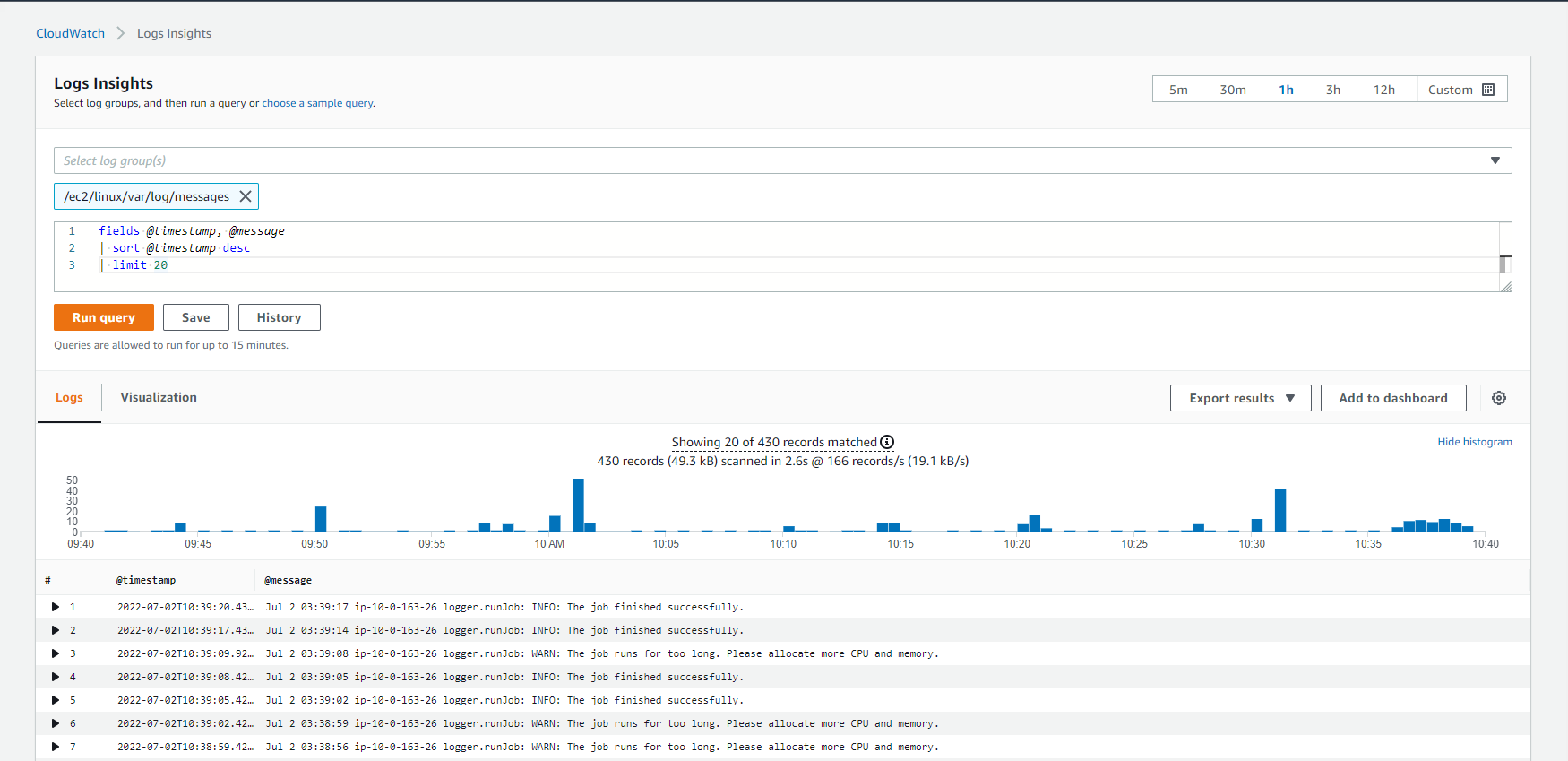
- Notice that we are querying the logs from the past one hour, chọn Custom
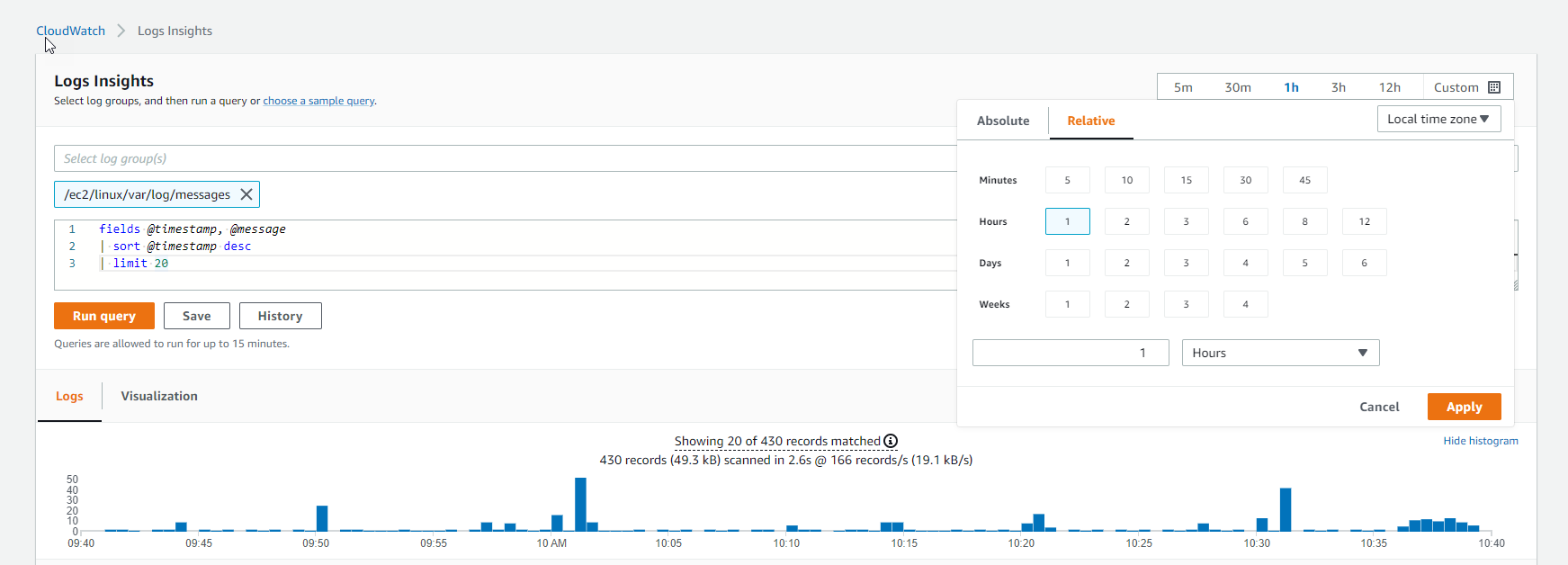
- Chúng ta sẽ thấy log như sau:

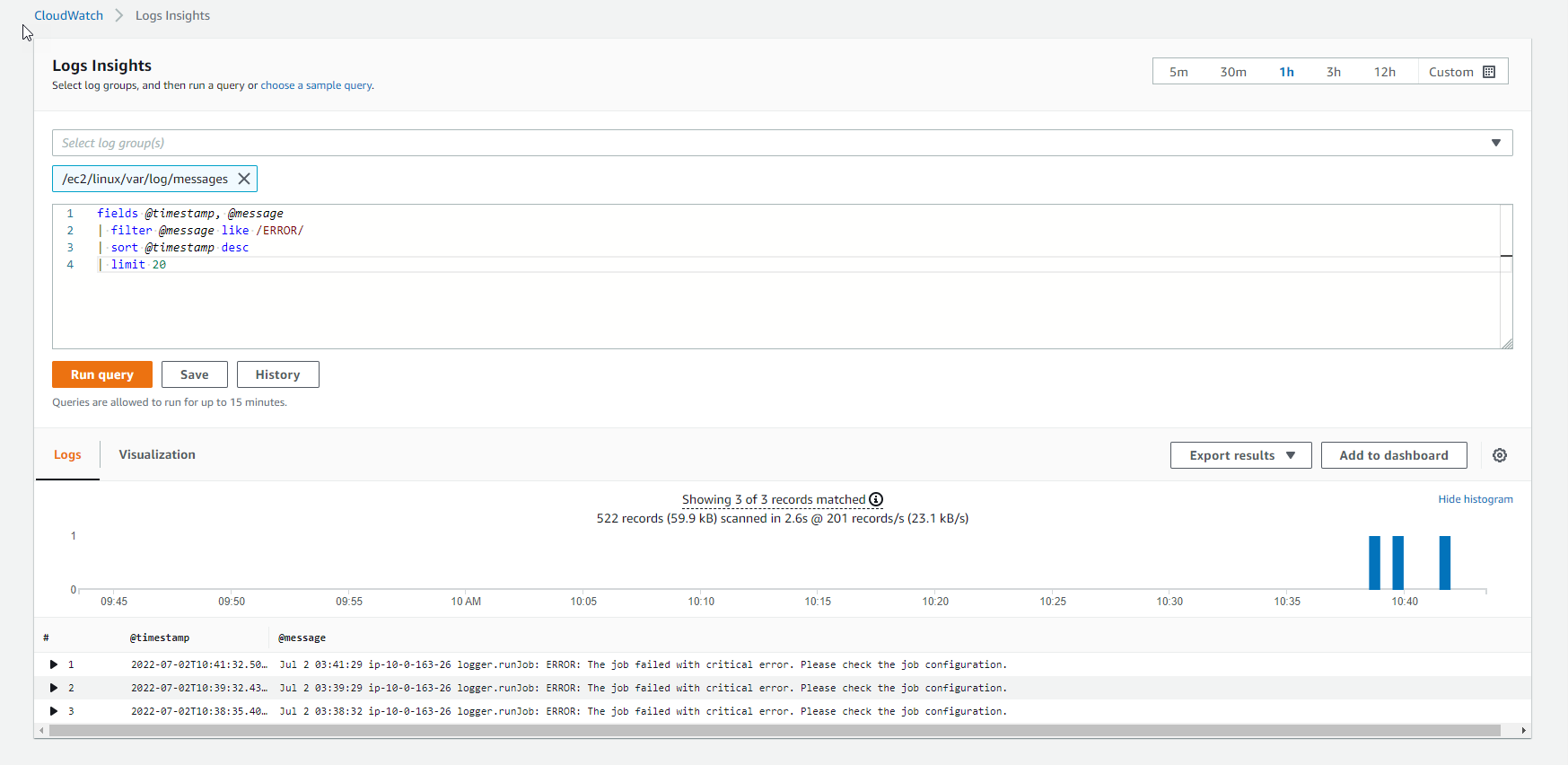
- Lọc những log lỗi
fields @timestamp, @message
| filter @message like /ERROR/
| sort @timestamp desc
| limit 20
- Xem các log chứa WARN
fields @timestamp, @message
| filter @message like /WARN/
| sort @timestamp desc
| limit 20
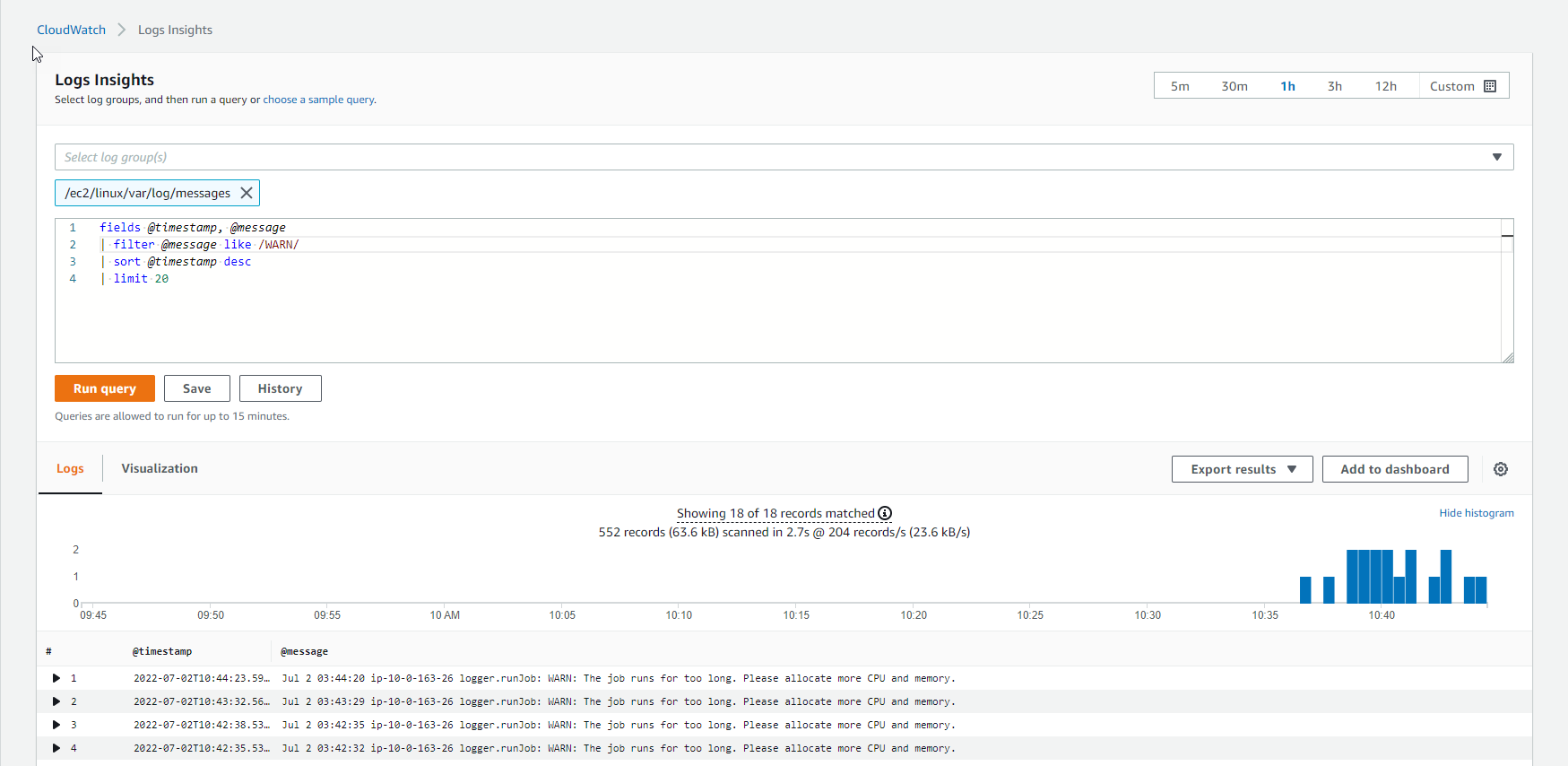
- Sau đó thử lại chạy query ERROR
fields @timestamp, @message
| filter @message like /ERROR/
| sort @timestamp desc
| stats count (*) by @logStream
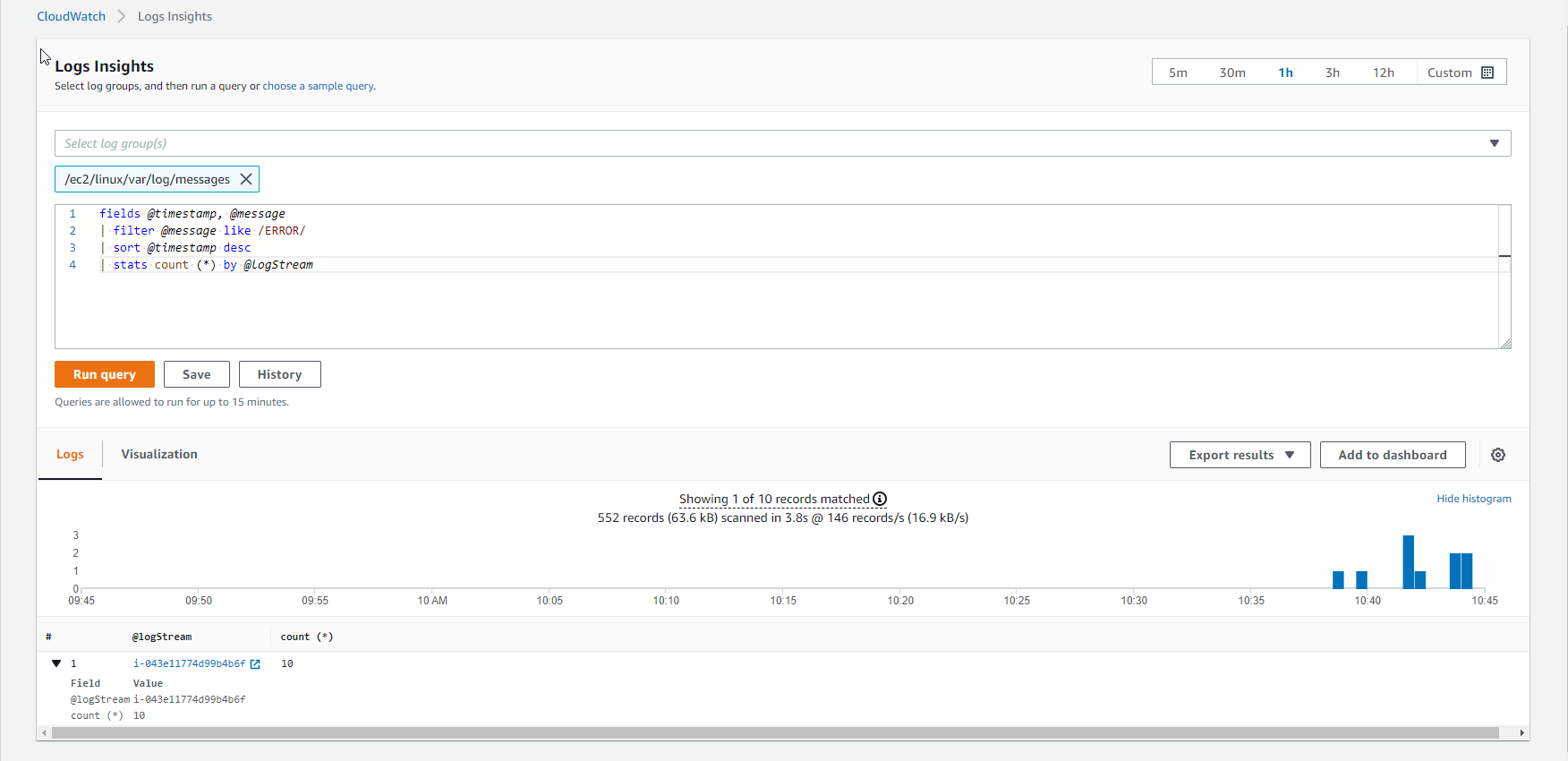
- Tiếp tục query
fields @timestamp, @message
| filter @message like /eth0/
| sort @timestamp desc
| stats count (*) by bin(5m)
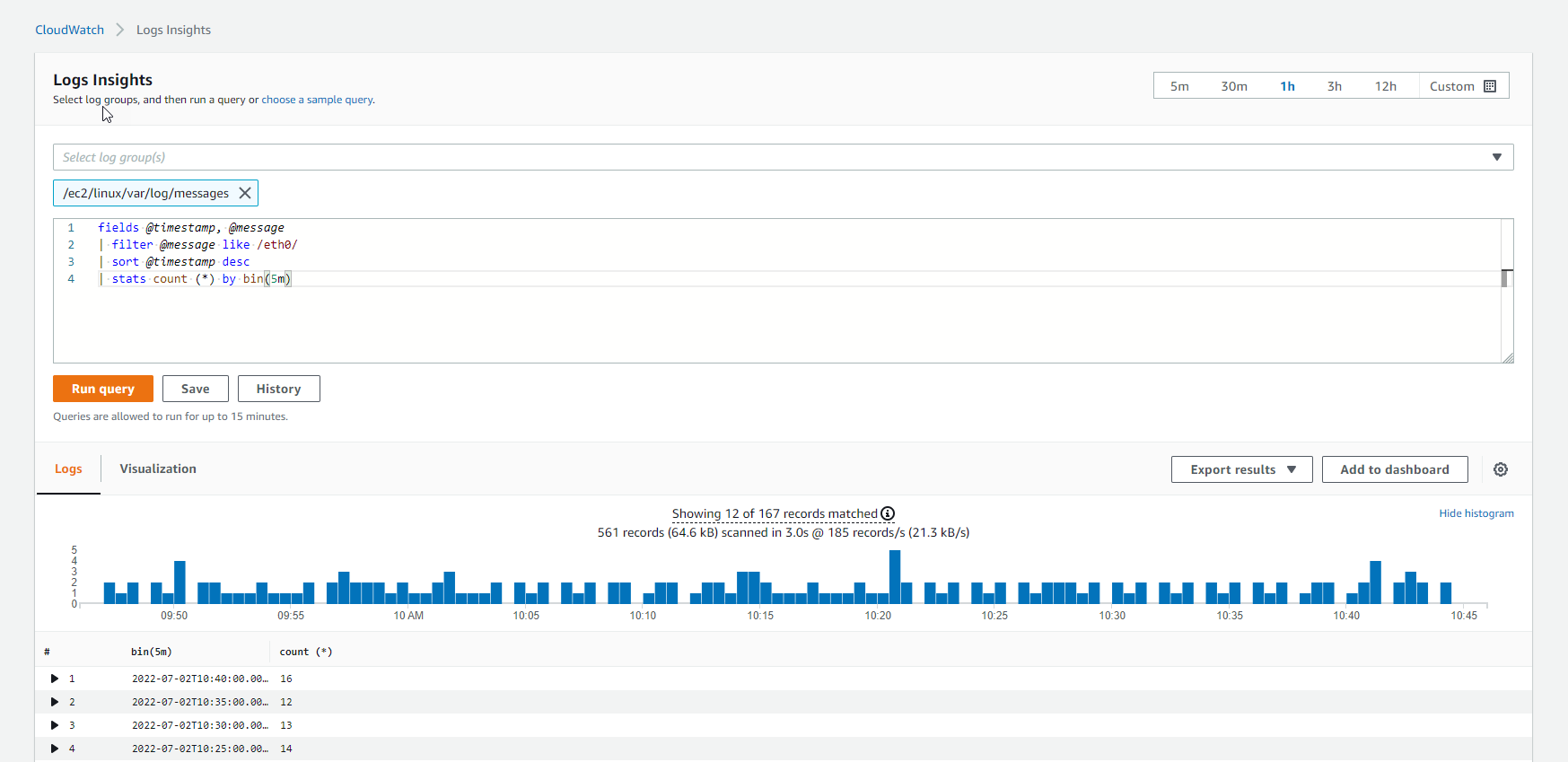
- Sau đó bạn xem Visualization
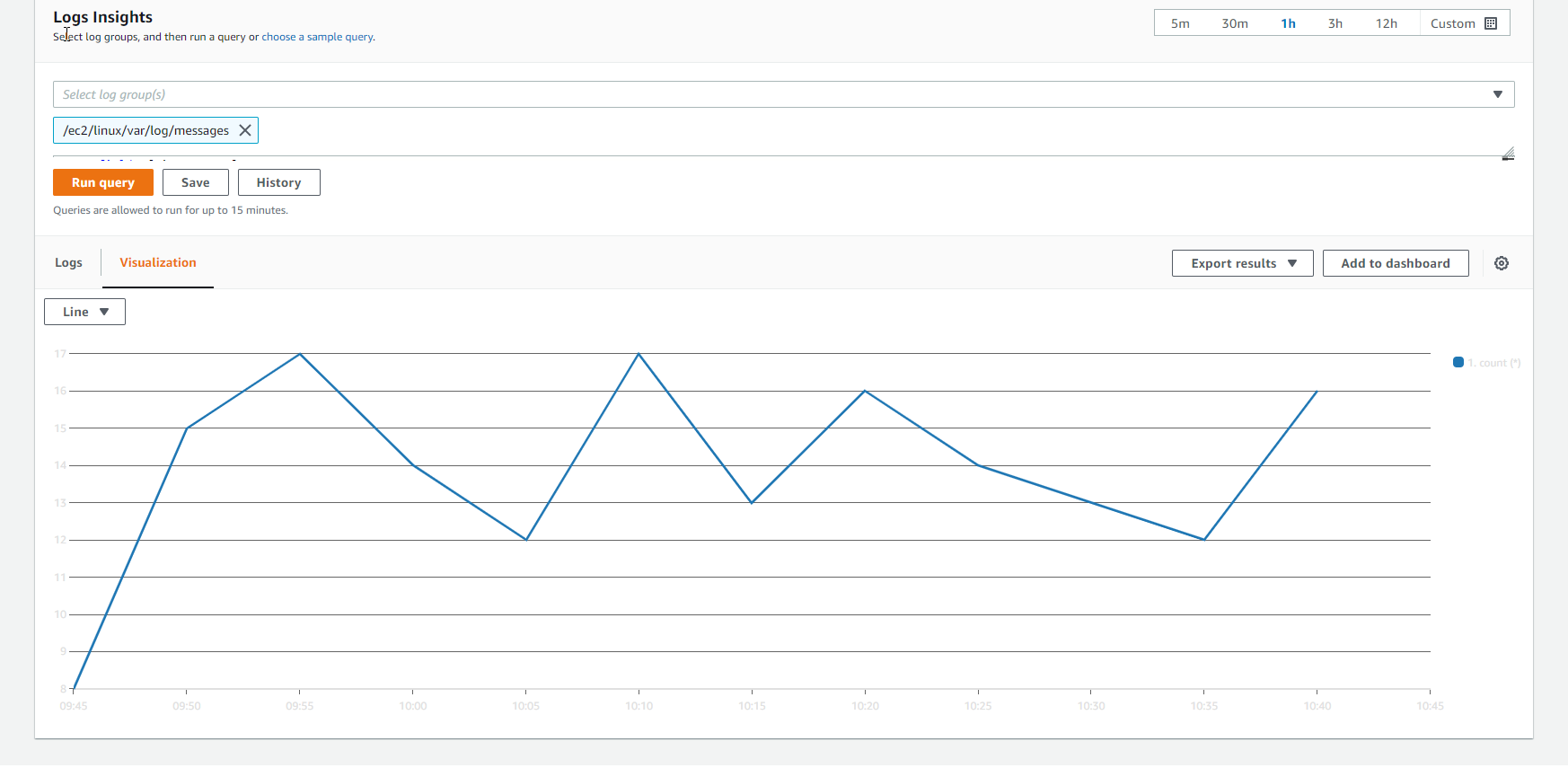
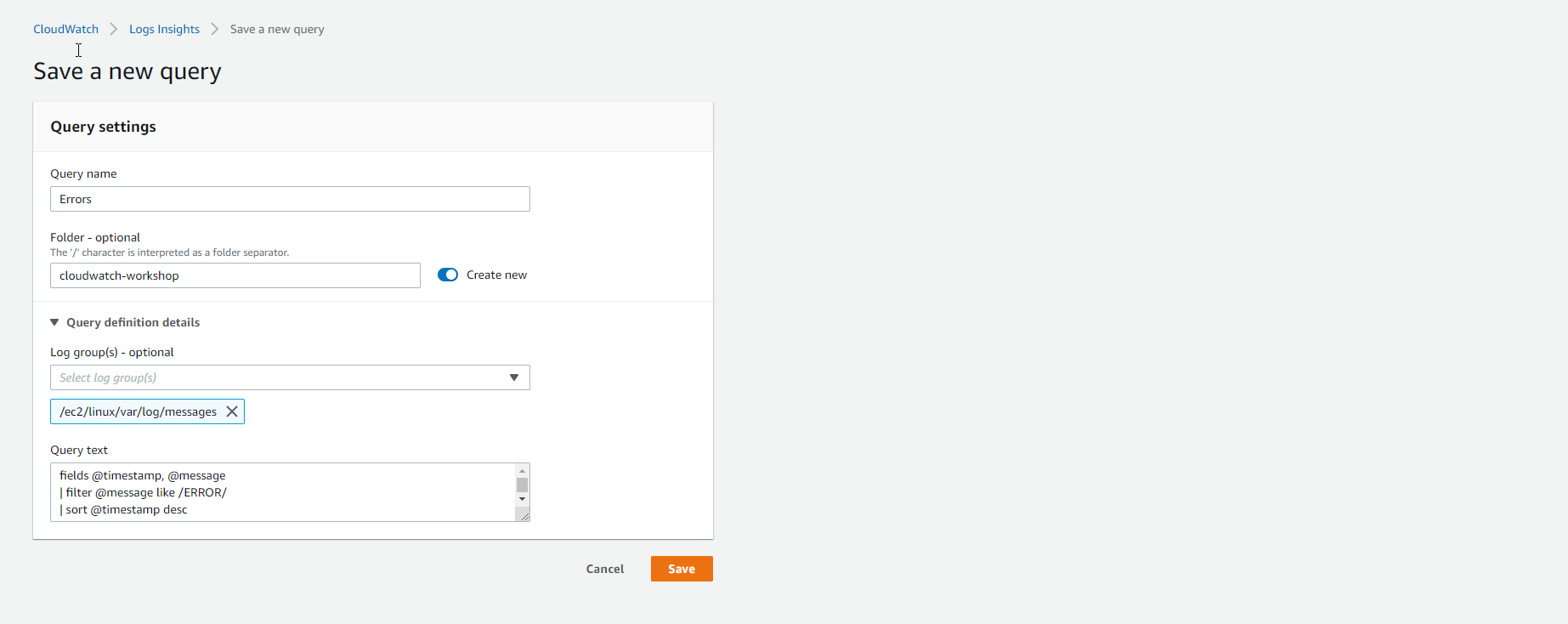
- Thực hiện Save query
fields @timestamp, @message
| filter @message like /ERROR/
| sort @timestamp desc
| limit 20
- Save query thành công.
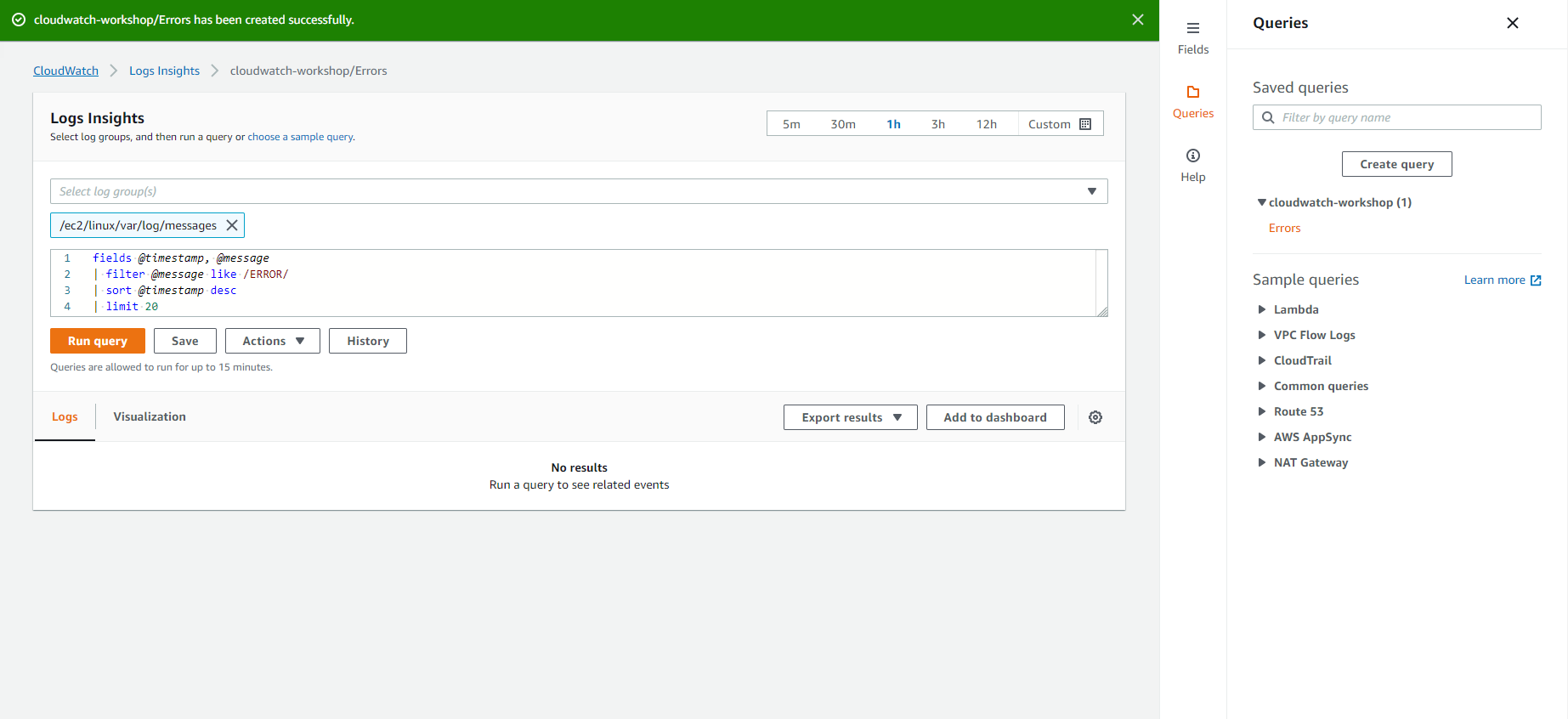
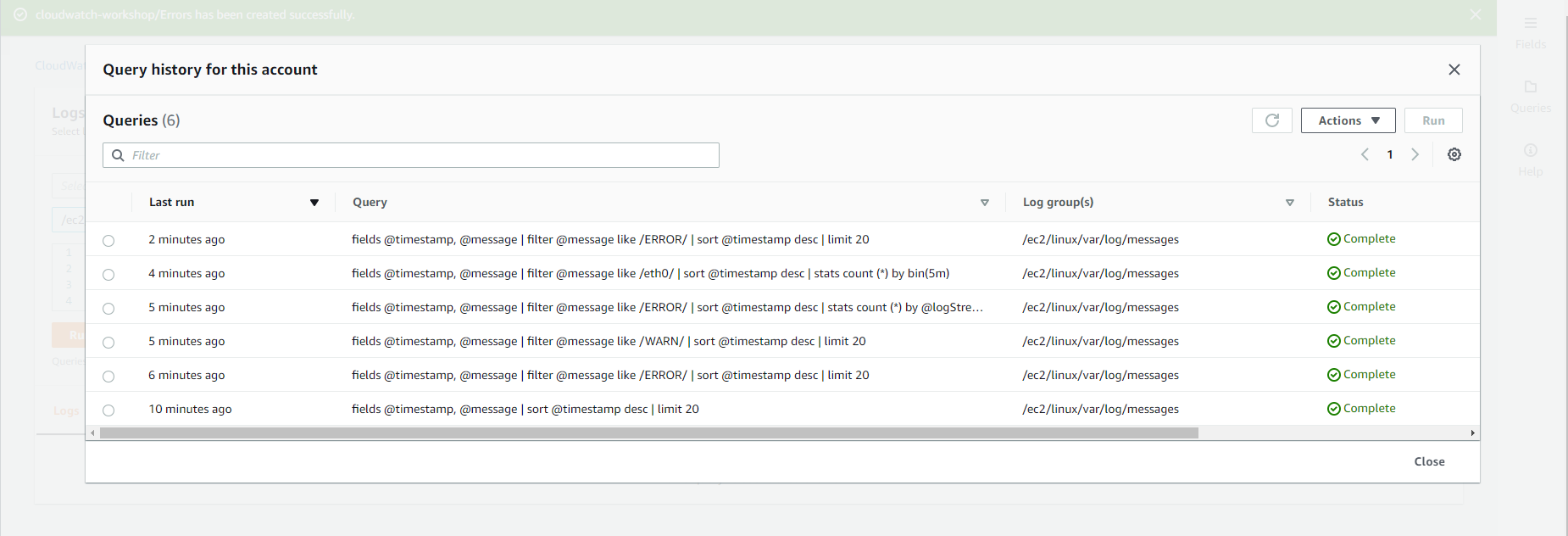
- Xem lịch sử các query.